CenterPoint® Accounting for Agriculture
- Edit an Accounts Receivable Invoice with an Applied Receipt
Related Help

| Document #: | 3472 | Product: | CenterPoint® |
|---|
Option A: Temporarily Remove Receipt for Invoice Edit
Option B: Delete Receipt to Allow Invoice Edit and Reenter Receipt
Option A - Temporarily Remove Receipt for Invoice Edit
Use this process to temporarily remove a receipt from an invoice so the invoice can be edited, for example to add a notation or a profit center. This process does not affect the bank reconciliation that the invoice/receipt may already be reconciled in.
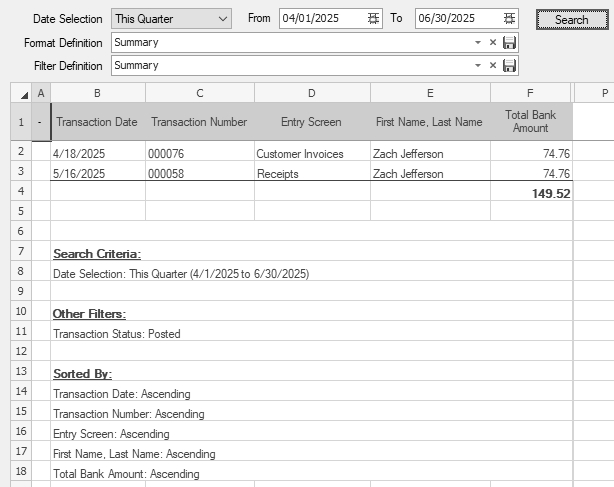
- Select Processes > Transaction Search or Reporting Tools > Transaction Search
- In the Date Selection or date From/To fields, specify the appropriate date range to search for the invoice by.
- Click Search.
-
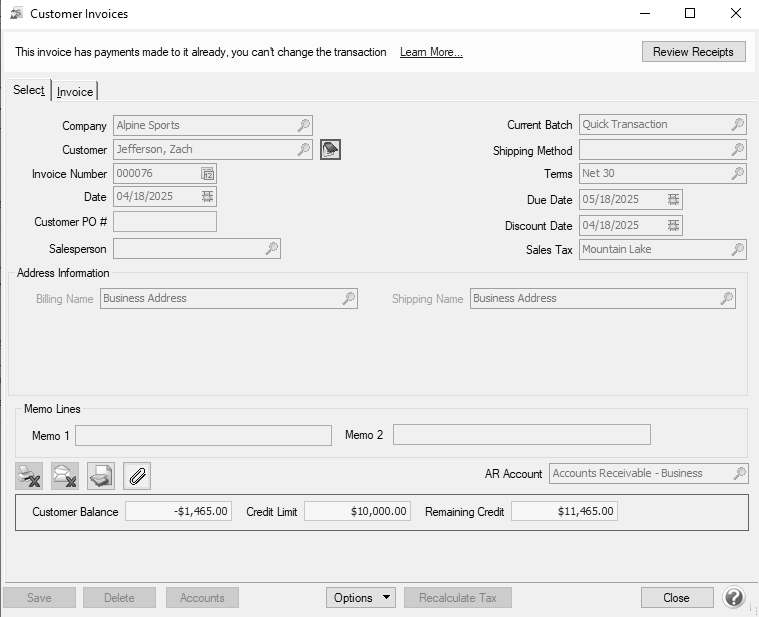
Right-click on the customer invoice and select Edit.
-
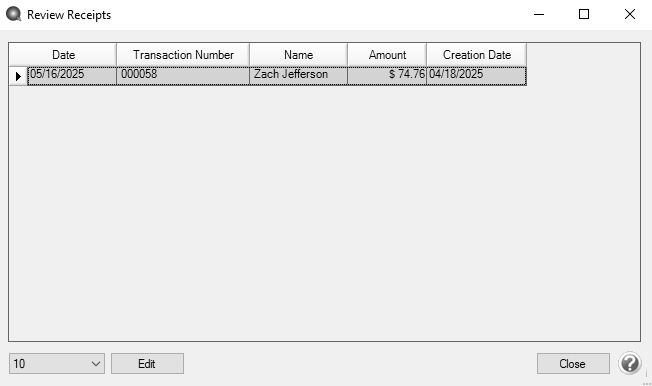
Click Review Receipts.
-
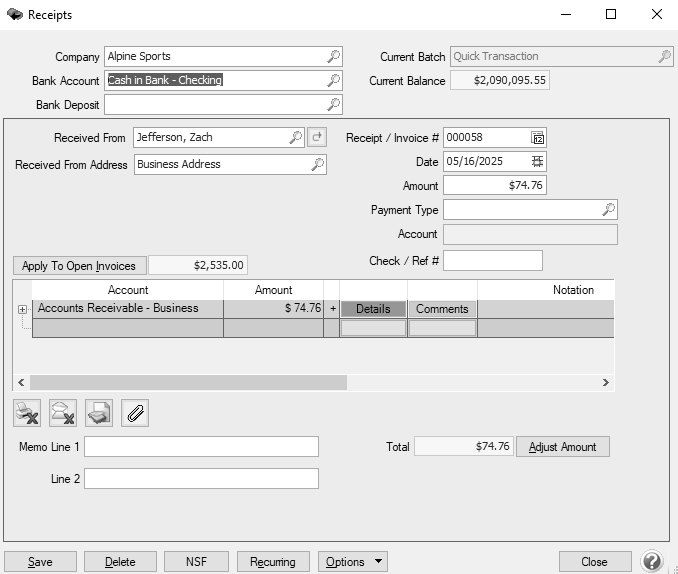
Select the receipt and click Edit.
-
Click Apply to Open Invoices.
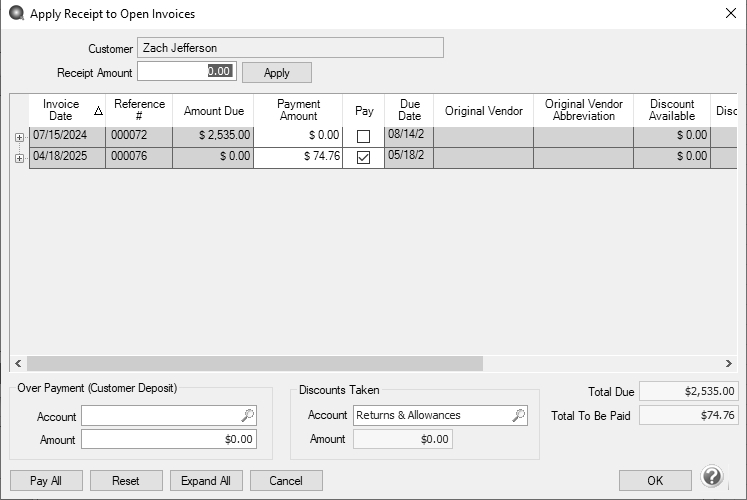
- Unselect the Pay check box and click OK
- On the Receipts screen, in the Account box, select an account for an in/out wash used during this process, for example Miscellaneous. This account will not end up with any balance after this process is completed.
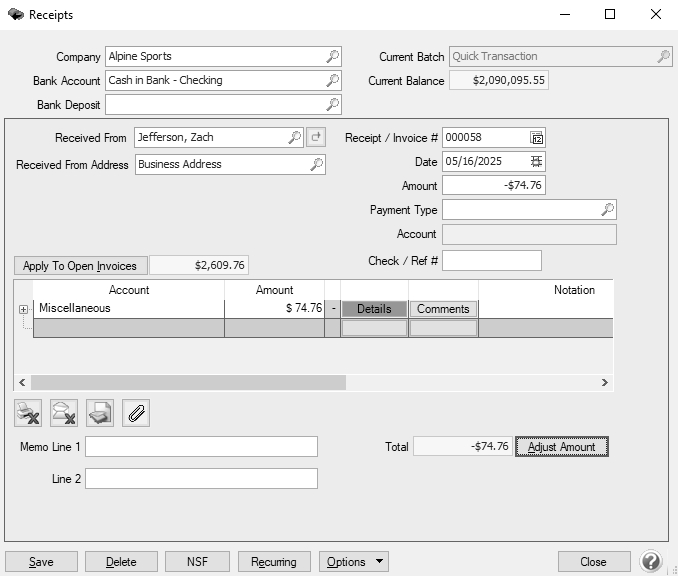
- Click Save and then click Close.
- Edit the invoice, in the example below a Memo 1 was entered.
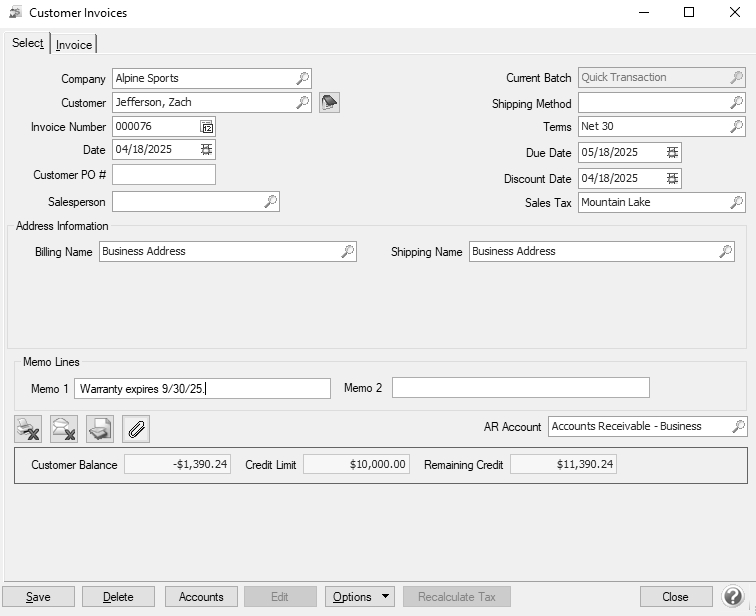
- Click Save.
- Select the receipt and click Edit.
- Click Edit.
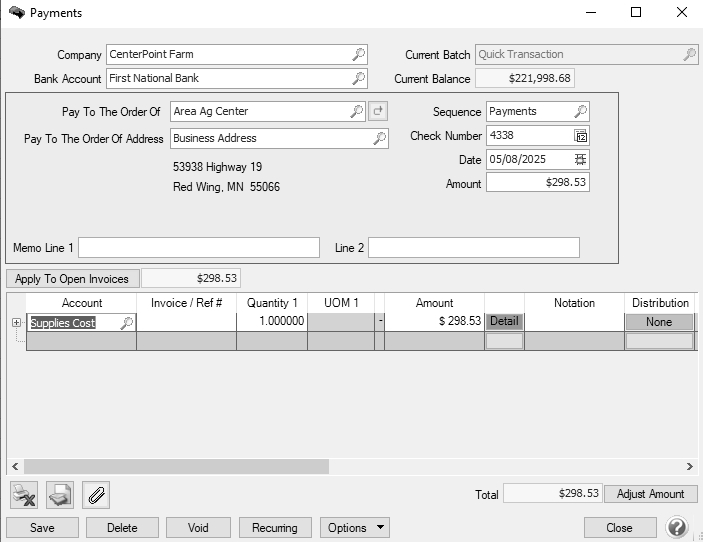
-
Remove the Account used in Step 8. In the example below, the Miscellaneous account was removed.
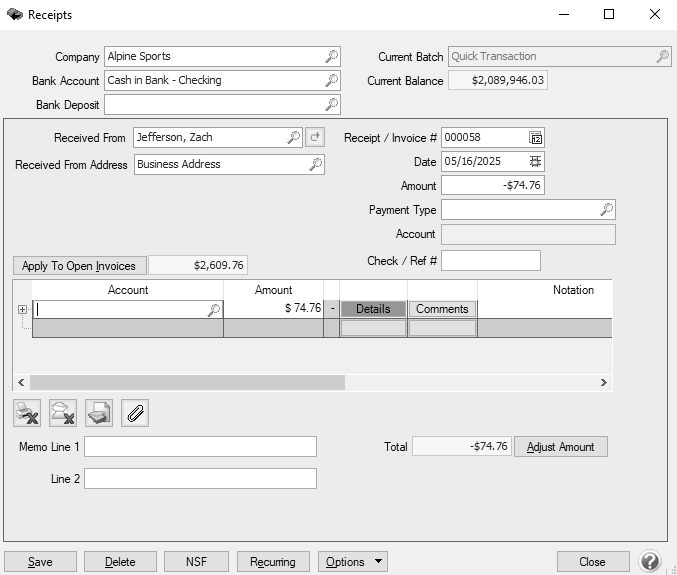
- Click the Apply To Open Invoices button.
- Select the Pay check box.
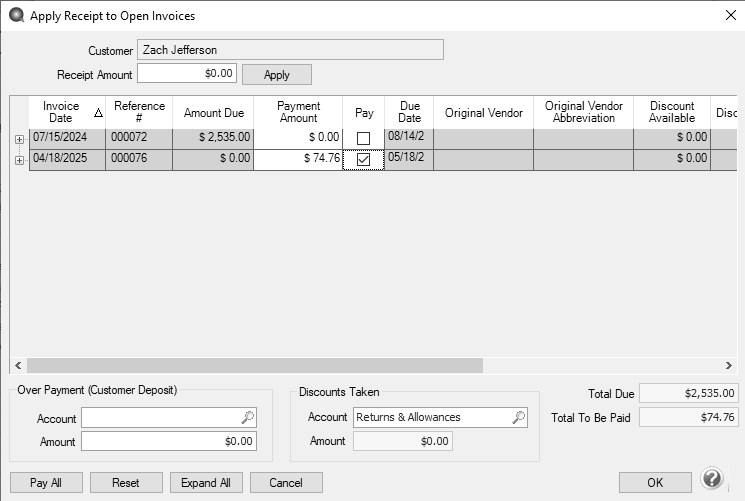
- Click OK.
- Click Save.
Option B: Delete Receipt to Allow Invoice Edit and Reenter Receipt
This process can be used to delete the receipt that is applied to the invoice that needs to be edited and then enter the exact receipt with dates, accounts, etc. after the edit is made. Option A is the preferred method.
Note: This method will change your bank reconciliation if the receipt that is being deleted was already reconciled. When the receipt is reentered it will not be cleared in an already reconciled bank statement. The receipt must be cleared again in the bank reconciliation it applies to.
- Select Processes > Transaction Search or Reporting Tools > Transaction Search
- In the Date Selection or date From/To fields, specify the appropriate date range to search for the invoice by.
- Click Search.

-
Right-click on the receipt and select Edit.
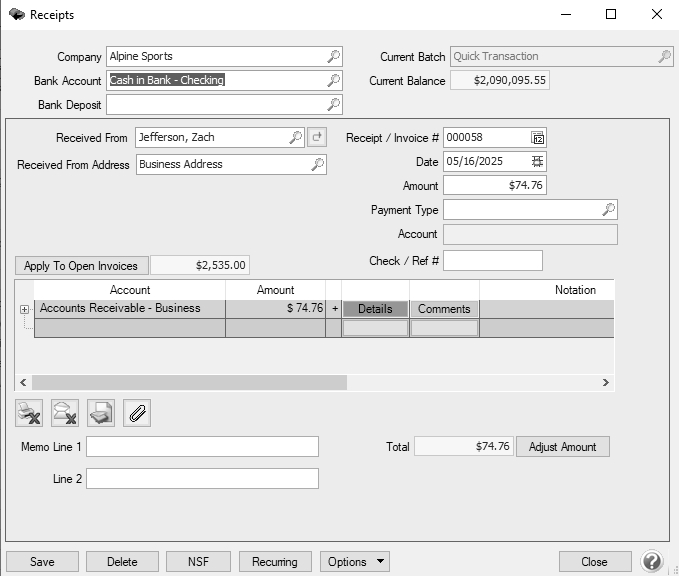
Note: Record all of the detail of the receipt you are deleting - Date, Transaction Number, Sequence, Amount, Account, etc. You will need these details to reenter the receipt so bank reconciliation is accurate.
- Click Delete. At the are you sure you want to delete the transaction, click Yes.
- Select Processes > Transaction Search or Reporting Tools > Transaction Search
- In the Date Selection or date From/To fields, specify the appropriate date range to search for the invoice by.
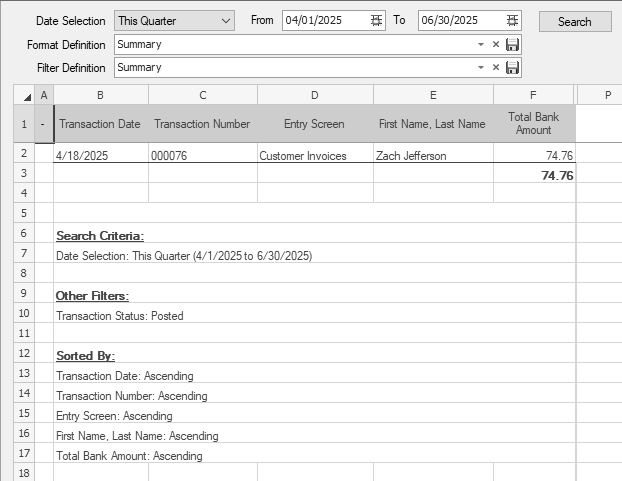
- Right-click on the customer invoice and select Edit.
- Edit the invoice, in the example below a notation was entered.
- Click Save and then click Close.
- Select Processes > Purchases > Receipts and enter the receipt that was deleted exactly as it was previously entered based on the notes you took in Step 3.
- Click Save and then click Close.
- Select Processes > Banking > Bank Reconciliation. Locate the bank reconciliation the reentered receipt applies to and click Edit.
- Clear the receipt.
- Click Save and then click Close.
|
Document: 3472 |
|---|
 See Also